Uploading to a workspace you've been invited to
Shooting for someone else's workspace? Accept the invite, sign in to the web uploader, find the right gallery and get your photos up.
In this guide
You've been asked to shoot for someone else's events, and they've invited you to their Photohawk workspace so you can upload your photos straight into their galleries. This guide takes you from the invite email to a finished upload, using the web uploader at upload.photohawk.com. It also covers what you can and can't do as an invited photographer, and how you see what you've earned if the gallery shares its sales.
You don't need your own plan, and nothing to install. The web uploader runs in your browser on a laptop or desktop, and on a phone when you need it.
1. Accept the invite
When a workspace owner or administrator adds you to their team, Photohawk emails you. The subject is "You have been invited to" and the workspace's name, for example "You have been invited to Riverside Events!". The email has a temporary password and a Get started button.
- If you're new to Photohawk, the invite has created an account for you, with your email address and that temporary password. You choose your own password the first time you sign in.
- If you already have a Photohawk account with that email address, the workspace is simply added to it. Sign in with your usual password.
Invites sent from 1 November 2026 have to be used within 7 days. If yours has expired, or the temporary password doesn't work, ask whoever invited you to send it again.
2. Sign in to the web uploader
Go to upload.photohawk.com. If you aren't signed in, you'll see the Photohawk Studio sign-in page. Enter your email address and password, and choose Sign In.
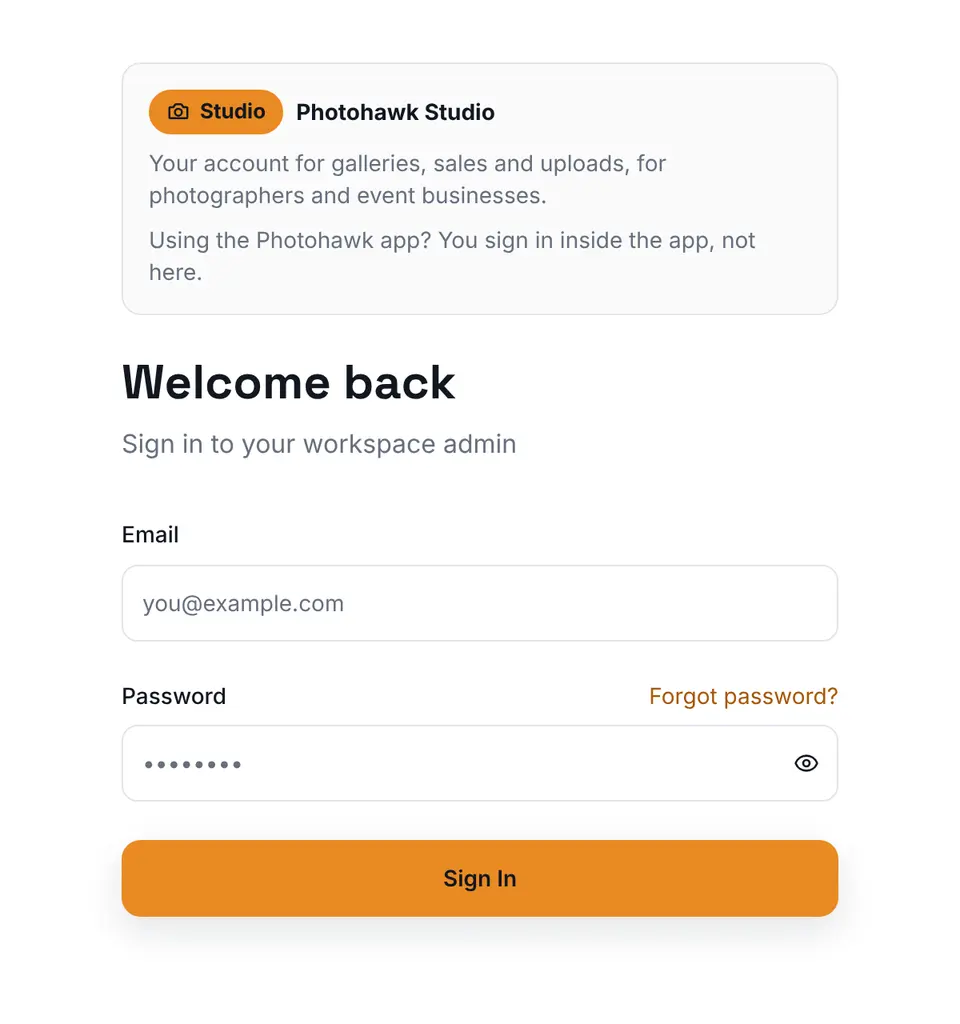
The first time, with the temporary password from your invite, you'll be taken to the main sign-in page to finish: sign in there once more and choose your own password. You then land in the workspace admin. Go back to upload.photohawk.com to start uploading. From then on, you go straight to the uploader.
Forgotten your password later? Use Forgot password? on the sign-in page to reset it by email.
3. Find where your photos go
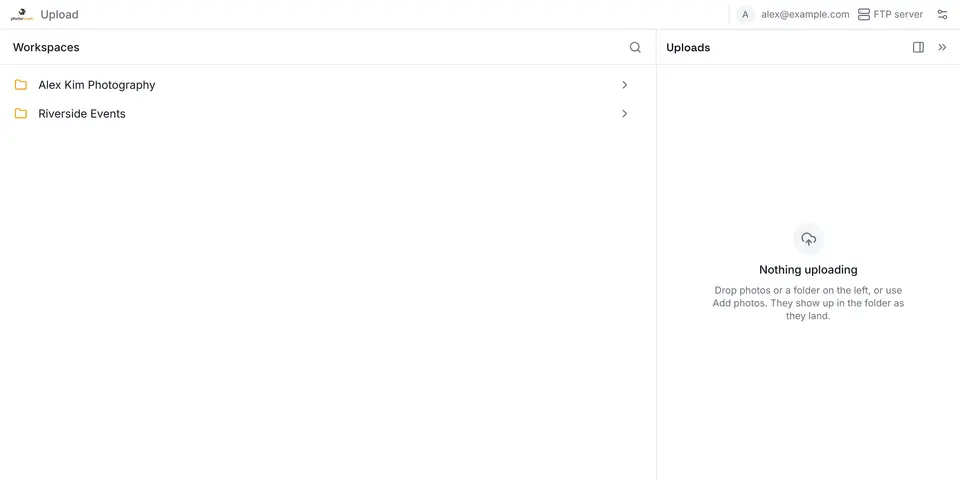
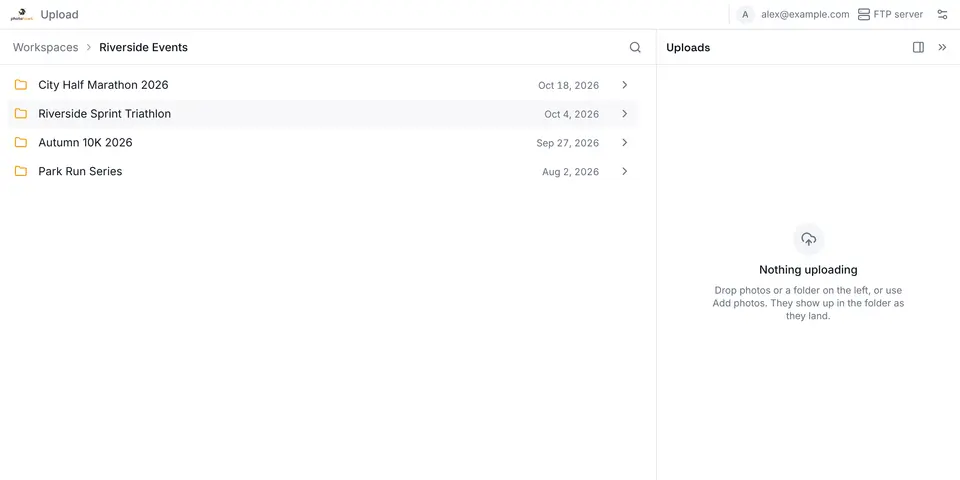
The uploader is laid out like a folder tree, as on an FTP server. The left side is where your photos go. You step down from the workspace to a gallery to a collection, then add your photos there. The right side is the upload queue.
Workspaces
If you belong to more than one workspace, for example your own and the one that invited you, you start with the list of workspaces. Open the one that invited you. If it's your only workspace, the uploader opens it for you.
Galleries
Next you see the workspace's galleries, newest first, because the one you're uploading to is usually a recent event. Use the search box when there are many. If the workspace has limited your access to particular galleries, you only see those.
Collections
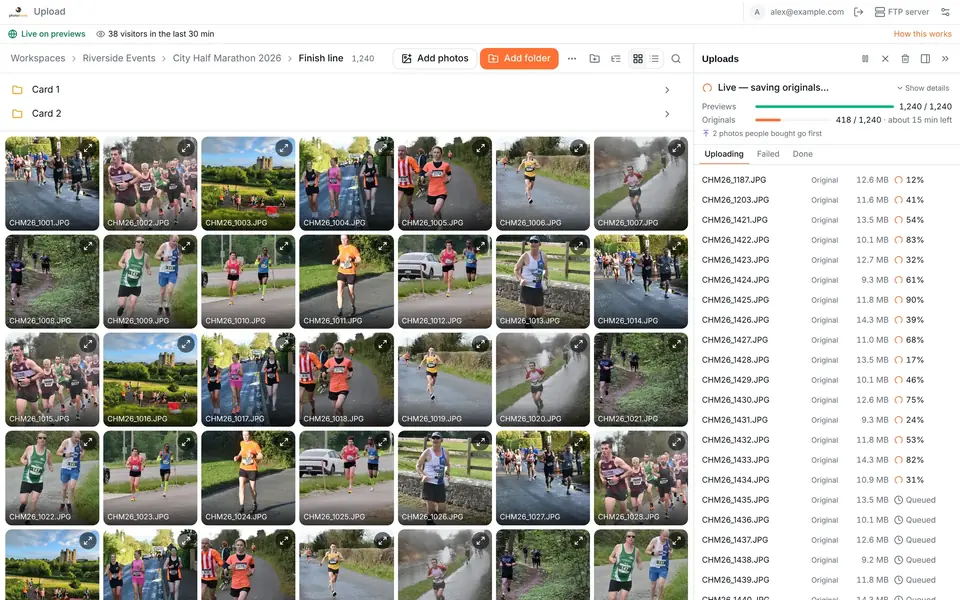
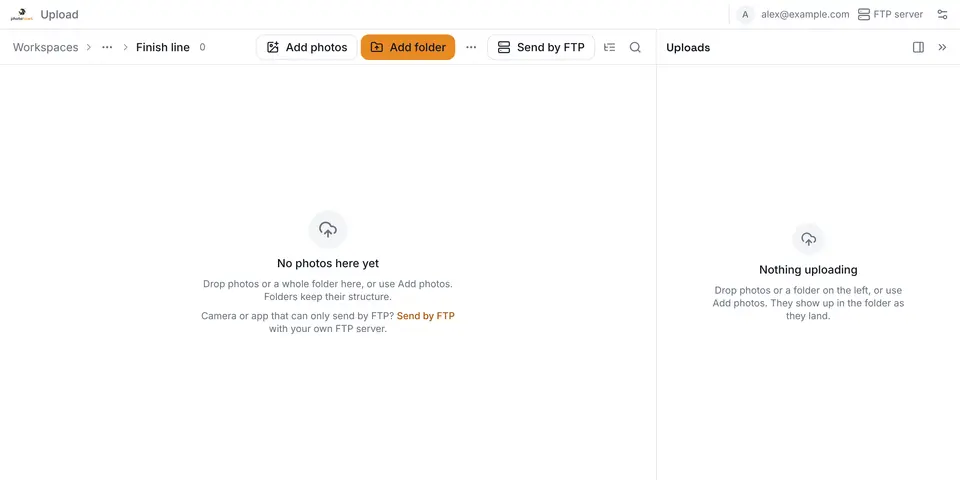
A gallery is divided into collections, such as "Start", "3 mile mark" and "Finish line". Open the one your photos belong in. The path along the top shows where you are, and you can tap any part of it to step back. On a phone, the path folds up to fit, and tapping "…" shows the levels in between.
4. Add your photos
There are three ways to add photos once you're in the right collection:
- Drag and drop photos, or a whole folder, anywhere on the left side.
- Add photos to choose individual files.
- Add folder to choose a folder. Its subfolders are kept as folders inside the collection, exactly as an FTP client would.
Before anything is sent, a summary tells you how many photos are new, how many are already in that place (so they're skipped), and anything the uploader can't take.
Previews first, or originals now
For photos, the summary also asks how they should go up, with a time estimate for each:
- Previews first, originals later. Light previews go up first, so the gallery can go live and people can browse, search and buy straight away. The originals follow from the same tab, and anyone who buys a photo before its original is up gets it as soon as it lands, because that original goes next.
- The originals now. Each photo appears once its original is up. Nothing to finish later.
- 1Light previews go up first
- 2Your gallery goes live
- 3Someone buys a photo
- 4Its original jumps the queue
- 5The originals follow
Light previews of six photos fly from your computer into your gallery, and the gallery switches to Live. Someone taps Buy on one photo, and its original moves to the front of the originals queue and goes up first. The other originals follow.
Previews first is on every plan. It uploads about 5% more in total, and the tab has to stay open until the originals have finished, unless you add the same folder again later. There's more about it in how preview-first uploads work.
5. Watch it upload
The queue on the right shows each batch with its progress, and the status bar says where things stand in plain words: the previews, then the originals, each with its own progress.
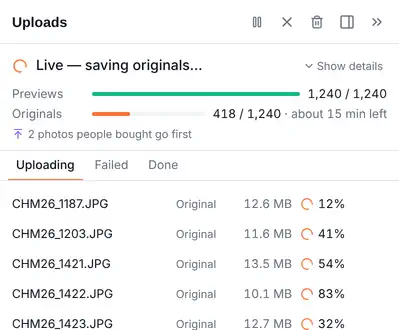
You can dock the queue on the right, on the left or along the bottom, and make it the size you like. Your browser remembers the choice.
If the connection drops, or the tab closes
The uploader adjusts to your connection as it goes, and if the connection drops it carries on by itself when it's back. If the tab closes before everything has finished, open the uploader again, go to the same collection and add the same folder. Only the photos that are missing are sent. When the uploader knows a folder didn't finish, it shows a banner with a Resume button.
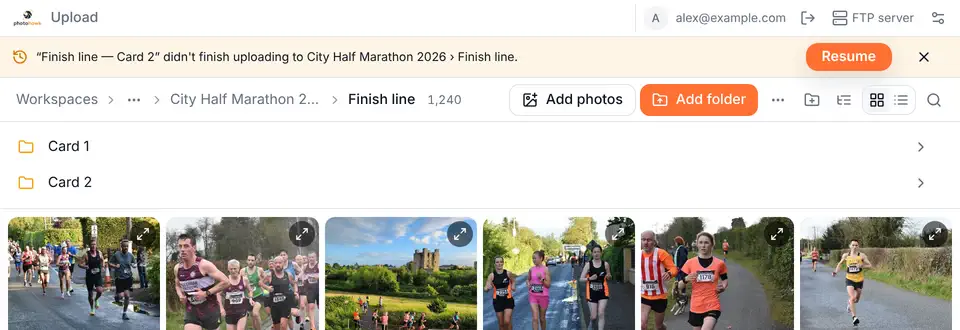
That makes it easy to start an upload on the venue's connection and finish the originals at home, from any device.
Uploading from a phone
The uploader works the same way in a phone's browser: sign in at upload.photohawk.com, step down to the collection, and use Add photos to choose photos from your library. It's handy for a few quick shots during the event. For a full card's worth, a laptop is quicker and easier to keep open until the originals have finished.
What you can and can't do as a photographer
Workspaces give each team member a role. Invited photographers usually have the photographer role, which is for uploading.
You can:
- see the galleries you've been given access to, and their collections and photos;
- upload photos and folders into existing collections, with previews first or originals now;
- open a gallery's Photos & Videos and Upload tabs in the workspace admin;
- start your own on-demand FTP server with Send by FTP, if you have a device or app that can only send by FTP.
You can't:
- publish a gallery or take it offline;
- create collections or galleries, or change their settings;
- see the workspace's dashboard, orders, customers, analytics, team or billing;
- see who else is uploading to the workspace.
If you need something you can't do, such as a new collection for a second finish line, ask the workspace's owner or an administrator. They can also change your role.
Getting paid for your photos
How you're paid for shooting is between you and the workspace. Some workspaces pay a day rate. Others share each gallery's sales with the photographers who shot it, using Photohawk's revenue splitting, a Enterprise plan feature.
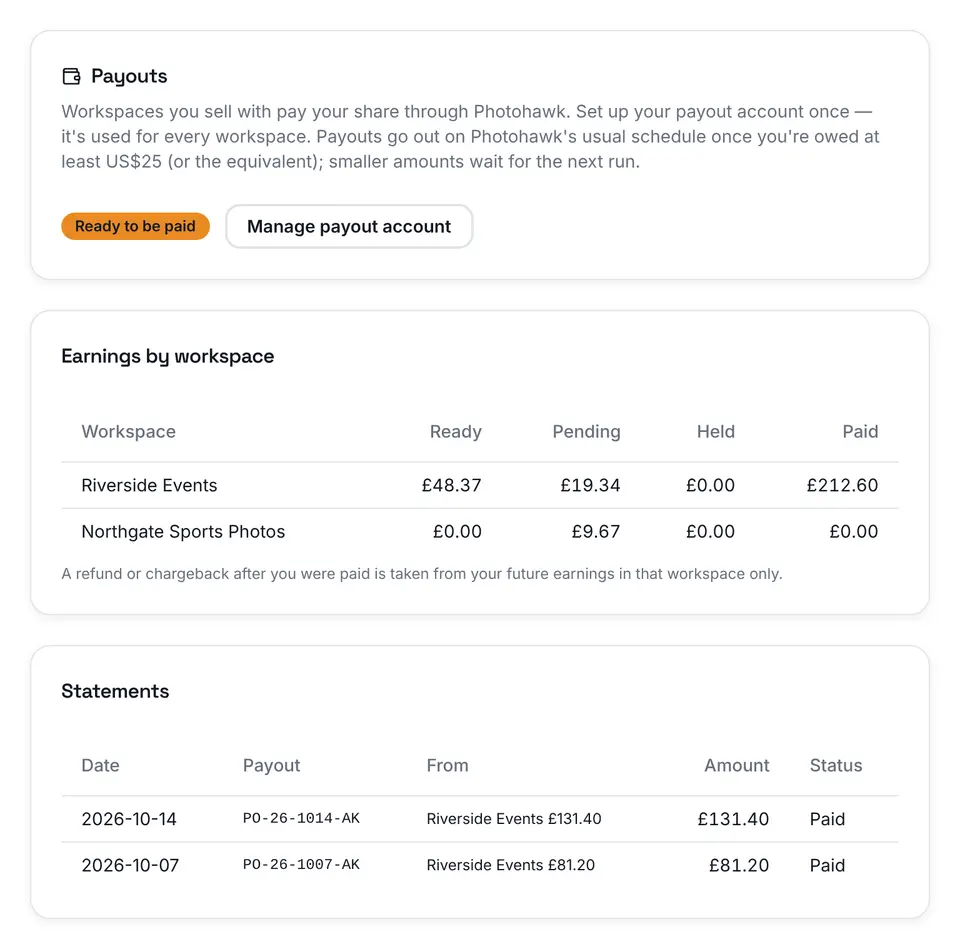
If the gallery shares its sales with its photographers, each photo you upload is credited to you, unless the owner has assigned the collection to someone else. When one of your photos sells, your share is worked out on that sale and recorded on the order.
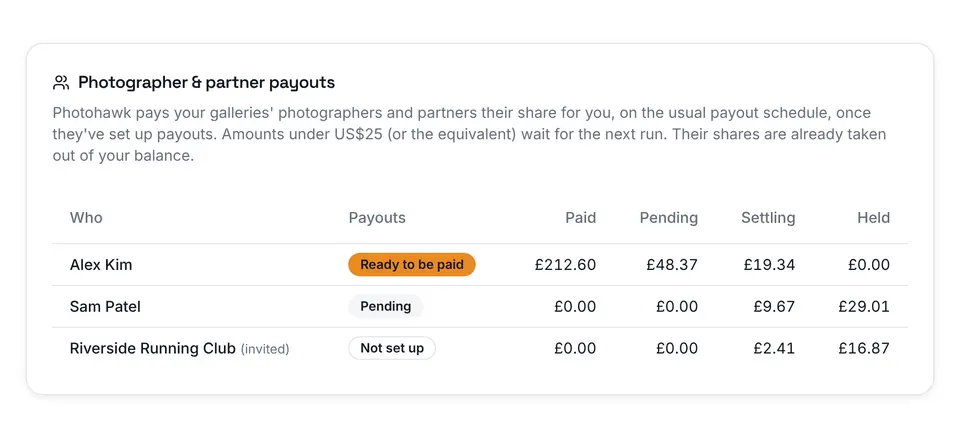
Your earnings appear on your Photohawk account page, under Earnings. That tab appears once you've earned from a split or set up payouts. When payouts are turned on for the workspace, Photohawk pays your share for them through its payout partner, Trolley. Choose Set up payouts once, and the same payout account is used for every workspace you shoot for.
A checklist for event day
- Accept the invite and sign in before the event, not at the finish line.
- Check you can see the gallery and the collections you'll need. Ask for any that are missing.
- Agree with the workspace whether to use previews first, so the gallery can go live quickly.
- On a slow venue connection, put the previews up from there and finish the originals at home by adding the same folder again.
- Keep the uploader's tab open until the originals have finished, or come back and add the folder again later.
- Sign out with the button at the top right if you're using someone else's computer.
The web uploader page has more on how it works and what's new.
Questions people ask
Do I need my own Photohawk plan to upload to someone else's workspace?
No. You upload into their workspace, under their plan. The invite gives you a Photohawk account if you don't have one already.
I didn't get the invite email. What now?
Check your spam folder for an email from Photohawk with the workspace's name in the subject. If it isn't there, ask whoever invited you to send it again from their Team & Users page.
My temporary password doesn't work.
It may have expired. Ask whoever invited you to send the invite again, and sign in with the new temporary password.
Why can't I see a gallery I'm meant to upload to?
Your access can be limited to particular galleries. Ask the workspace's owner or an administrator to add that gallery to your access, or to create the gallery if it doesn't exist yet.
Can I create a new collection for my photos?
Not as a photographer. Owners and administrators create collections. You can drop a folder into an existing collection, though, and its subfolders are kept.
Can I close the tab while my photos upload?
Not until they've finished. If the tab closes or the connection drops, add the same folder again to the same place, and only the photos that didn't make it are uploaded.
How do I get paid for the photos I sell?
If the gallery shares its sales with its photographers, each photo you upload is credited to you. Your earnings appear under Earnings on your Photohawk account page, where you set up payouts once.
Written by
The people who build and run Photohawk
We build Photohawk, the platform event photos are shared and sold on, and we answer its support inbox. These guides come from what we see every week: how galleries are set up, how people search for their photos and what they ask us when something goes wrong.
Published · Updated · Last reviewed