How to split gallery revenue with photographers and partners
Share a gallery's sales with its photographers, a club, sponsor or charity. How to set the split, what each person gets, and when Photohawk pays them.
In this guide
Most event galleries are a team effort. A second shooter covers the finish line, a club lends you its members and its mailing list, a sponsor pays for the race and wants something back, a charity is the reason the event exists. Revenue splitting lets you share a gallery's sales with all of them, in the gallery's settings, with the sums worked out on every order and the people paid by Photohawk on your behalf.
This guide covers setting up a split, what the percentages mean, how the people you share with get paid, and what happens when a sale is refunded or the split changes. It's written for workspace owners and administrators. If you're a photographer who has been added to someone else's split, the sections on getting paid and when money moves are the ones for you.
What a split is
A split belongs to one gallery in a workspace on the Max plan. Turn it on, list the parties, give each a percentage, and from then on every sale in that gallery is divided between them and your workspace.
There are two kinds of party:
- The photographer of the photo. One entry that covers everyone who shoots for the gallery. Each sold photo earns its own photographer their share, so a photographer who sells more earns more. If a photo has no known photographer, the workspace keeps that part.
- Named parties. A partner, sponsor, club, charity, venue, a person, or anything else. A named party gets its share of the whole order, whoever took the photos.
A gallery can have up to 10 parties in all, and only one "photographer of the photo".
Who counts as the photographer of a photo
The photographer of a photo is whoever uploaded it, unless an owner or administrator has assigned the collection to a photographer. That's for when someone else does the uploading: an assistant at the finish, or the office the day after. To assign one, open the collection's settings and choose a name under Photographer. The default is "Whoever uploaded each photo".
The photographer is recorded on the order when it's placed, so moving or reassigning photos later doesn't change who earned from a sale that already happened.
A photographer can also have their own share for your whole workspace, set on their entry in Team & Users. When they have one, it wins over the gallery's "photographer of the photo" percentage.
The photographer share is for photos. Videos in an order don't earn it.
Setting up a split
You'll find the split in the gallery's settings: open Galleries, choose the gallery, then Settings, the Selling & downloads tab, and the Revenue split card.
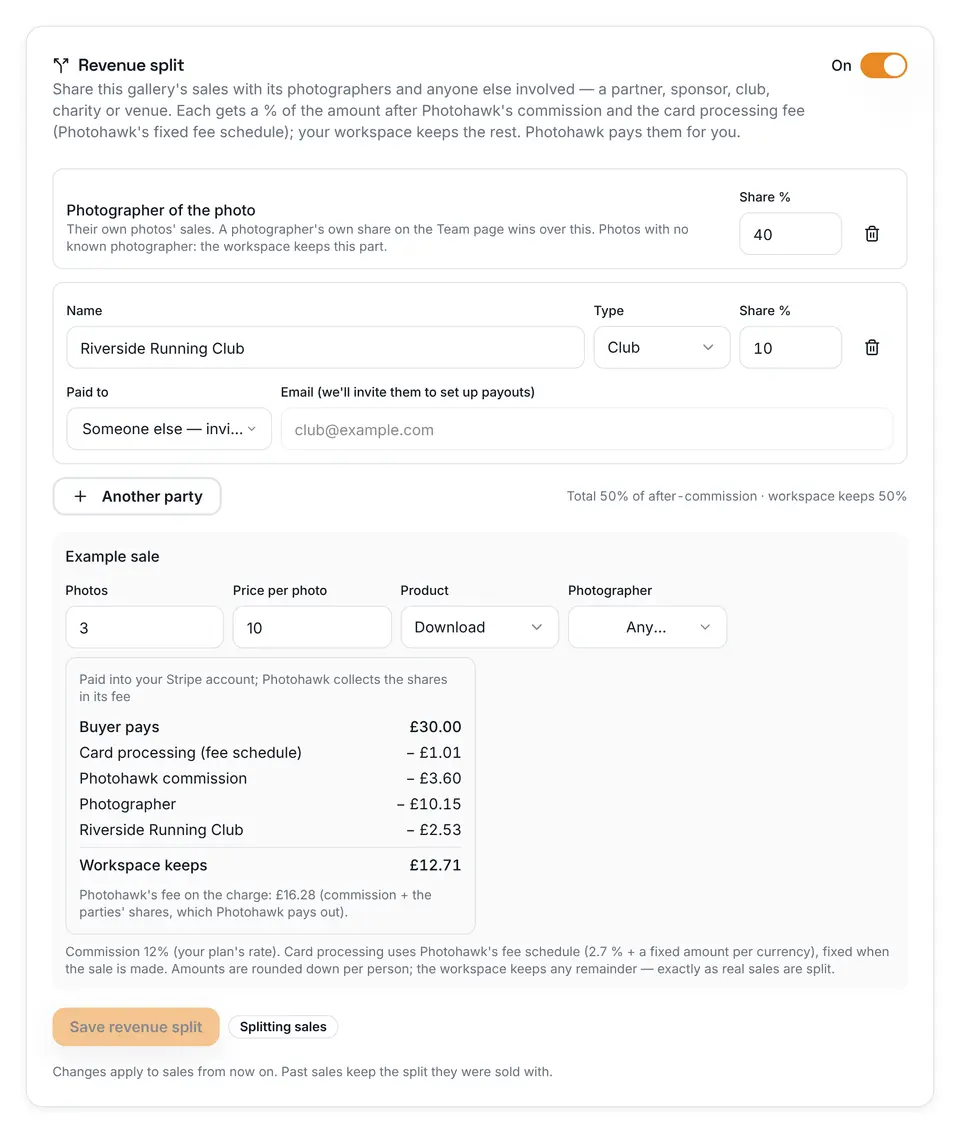
- Turn the split on with the switch at the top of the card.
- Set the photographer share. A new split starts with "Photographer of the photo" filled in from your workspace's default share, if you have one. Change the percentage, or remove the entry if you don't want to share with photographers in this gallery.
- Add other parties with Another party. Give each one a name, choose a type (partner, sponsor, club, charity, venue, person or other) and a share.
- Choose who gets paid for each named party under Paid to. Pick a member of your workspace, or Someone else — invite by email and enter their email address.
- Check the total. The line under the parties shows the total percentage and what your workspace keeps. It can't go over 100%.
- Save revenue split. Anyone you added by email gets an invite straight away.
The card checks what you enter as you type: a named party needs a name and someone to pay, an email has to be a valid address, and the total has to be 100% or less. The server checks it all again when you save.
The example sale
Under the parties is an example sale you can change: how many photos, the price of each, download or print (with the lab cost per print), and whose photos they are. The breakdown under it isn't an estimate made in your browser. It's worked out by the same code that splits real orders, with your plan's commission and the fee schedule for your currency, so it's what a real sale like it would pay.
If the shares you've set wouldn't fit in a sale after fees, the example says so. That can happen with a very cheap product, a high lab cost or shares that add up to nearly 100%. When it happens on a real order, nobody is paid more than the sale brought in: the named parties' shares are trimmed or, where the sale is paid into your own Stripe account, not collected for that sale.
What the percentage is a percentage of
Each party's percentage applies to what's left of a sale after three things come off:
- The card processing fee, from Photohawk's fee schedule: 2.7% plus a fixed amount per currency, such as 20p for pounds or 30 cents for dollars. It's fixed when the sale is made, so it doesn't change if the actual card fee turns out higher or lower.
- Photohawk's commission, at your plan's rate. On Max, the plan revenue splitting is part of, that's 12%; see pricing.
- The lab cost, for prints.
Each party's share is rounded down to the penny or cent, and your workspace keeps whatever's left, including those fractions.
Using a percentage of what's left, rather than of the price, means the split stays fair whatever the product. A print with a high lab cost or a cheap single download doesn't leave your workspace paying out more than it took.
Changing a split
You can change a split whenever you like: raise or lower a share, add or remove a party, or turn splitting off. The change applies to sales from the moment you save it.
Sales that have already happened keep the split they were sold with. When an order is placed, each line records who earned from it and at what percentage, and that record is what payouts, refunds and reports use from then on. So:
- Lowering a share or removing a party doesn't take back what they've already earned. They're still paid their share of past sales.
- Raising a share or adding a party doesn't backdate it. They earn from new sales only.
- Turning splitting off stops new sales being split. Shares of past sales are still paid out.
If you lower a share, remove a party or turn splitting off, Photohawk asks you to confirm before saving and lists each change, so nobody's share is cut by accident.
Every change is logged with who made it and when.
Where money comes from
Who collects the buyer's payment depends on how your workspace is set up to take payments, and that decides how the shares are taken out. In plain terms there are two ways.
Photohawk collects the sale. In some countries, such as Mexico, buyers pay Photohawk, and Photohawk pays your workspace its earnings. The same applies to a workspace that hasn't connected a Stripe account. Here the parties' shares come out of what Photohawk owes your workspace. Your balance and payout statement show the shares deducted.
The sale is paid into your Stripe account. In countries where your workspace has its own connected Stripe account, such as the United Kingdom, the buyer's money lands in your Stripe account and Photohawk takes its fee from each sale. On a split gallery, that fee also includes the parties' shares, worked out when the card is charged, because Photohawk is the one paying them. The example sale shows this as "Photohawk's fee on the charge". If you refund a sale from your Photohawk admin, the shares' part of the fee is refunded in proportion. If you refund a sale or lose a dispute in your Stripe dashboard instead, Photohawk returns the parties' part of its fee for that sale too.
Either way, Photohawk holds the shares for the people you're sharing with and pays them for you. They're not Photohawk's revenue.
How the people you share with get paid
Photohawk pays people through Trolley, its payout partner. Each person sets up a payout account once, and Photohawk uses it for every workspace that shares sales with them. Trolley asks for what it needs to pay them, such as bank details and, depending on the country, tax information. Photohawk doesn't show their bank details to you or anyone else.
Members of your workspace
A member you share with signs in to Photohawk and opens their account page. An Earnings tab appears there once they've earned from a split, or once they've set up payouts. Under Payouts they choose Set up payouts, which opens the payout setup in a window on the page.
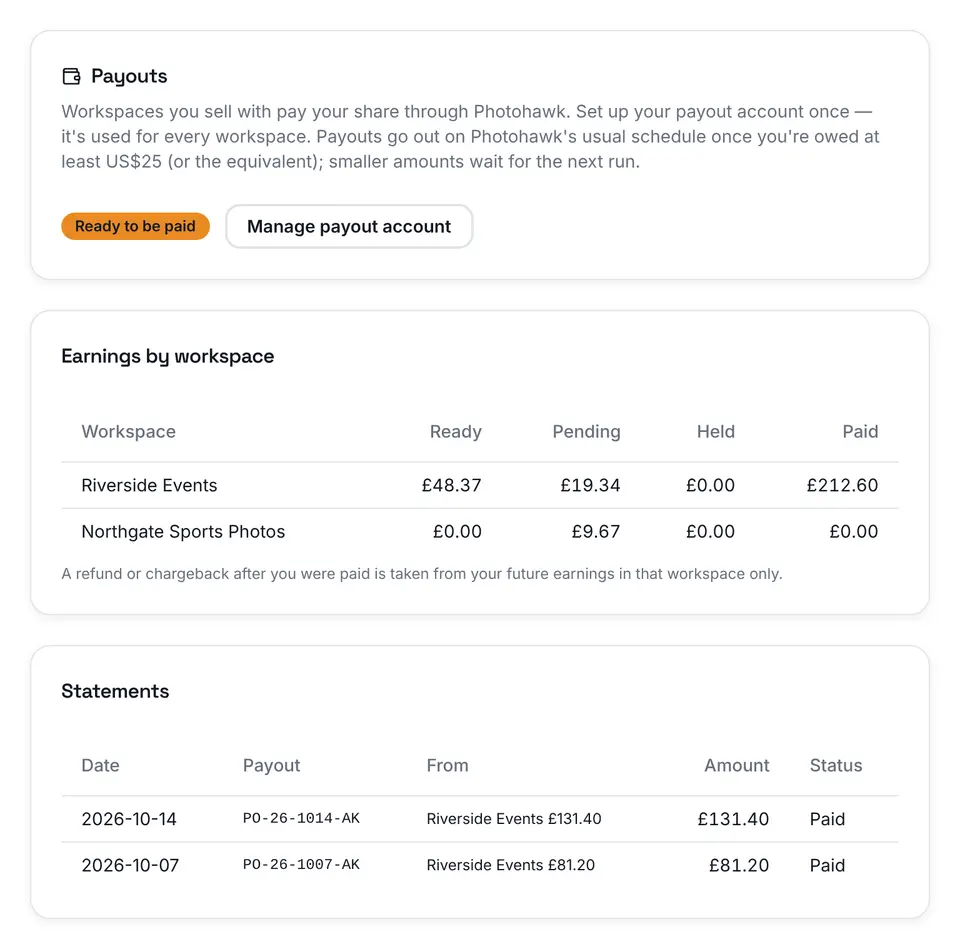
The page keeps an eye on their status while they set up. Once Trolley says their account is ready, the badge changes to "Ready to be paid" on its own, without a reload.
People outside your workspace
A club, sponsor or anyone else you invite by email gets a message from Photohawk Payouts, titled with your workspace's name: "… wants to share sales with you". It explains that you've added them to a gallery's revenue split and that Photohawk pays their share through Trolley. Their link opens a page with their earnings and Set up payouts. They don't need a Photohawk account.
The link is personal and expires after 30 days. If it has expired, they can ask you to send a new one.
Payout status
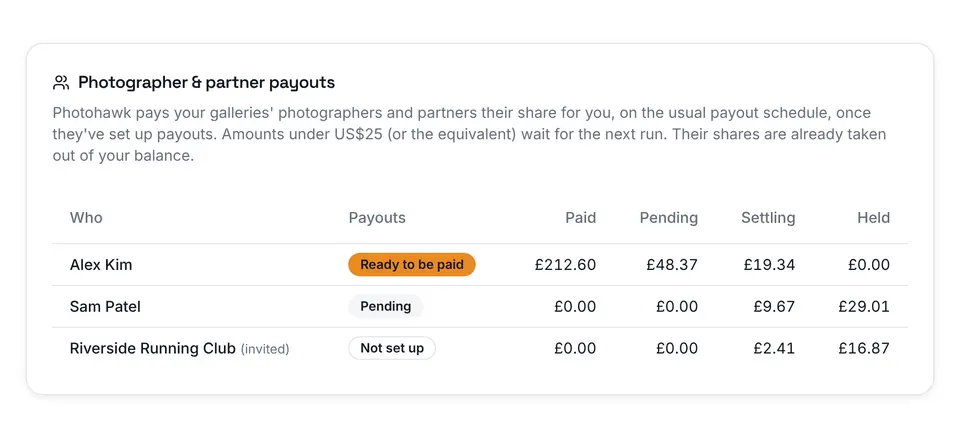
Each person has one of four statuses. You see them on Balance & Payouts, in the Photographer & partner payouts card, and they see the same on their earnings page:
- Not set up: they haven't started payout setup yet.
- Pending: they've started, and Trolley hasn't finished checking their details.
- Ready to be paid: payouts can go out to them.
- Blocked: Trolley can't pay them at the moment. They should open their payout account to see why.
Shares owed to someone who isn't ready are held, never lost. They're paid in the first payout after the person is ready.
When money moves
- SaleEach person's share is worked out and fixed when the order is placed.
- SettlingThe sale waits out the settlement window, in case it's refunded.3 days
- Ready or heldReady if their payout account is set up; held until it is if not.
- Daily payout runOne payment per person per currency, across every workspace.US$25 minimum
- PaidSent through Trolley to the account they chose. Smaller amounts roll over.
- The sale. Each person's share is worked out and recorded on the order.
- Settling. Every sale waits out a 3-day settlement window first, the same window workspace payouts use, in case it's refunded.
- Ready or held. After that, the share is ready to pay if the person's payout account is ready. If it isn't, or the sale has an open dispute, it's held.
- The payout run. Photohawk sends at most one payment a day to each person in each currency, adding up what every workspace owes them. A payment goes out once they're owed at least US$25 or the equivalent. Smaller amounts roll over to the next run.
- Paid. The payment is sent through Trolley to the account they chose, and it appears on their statements with what came from which workspace.
Refunds, disputes and clawbacks
A refund reduces every share on the order in proportion. If a quarter of an order is refunded, each party loses a quarter of their share of it.
- Before the share is paid, it's simply reduced, or cancelled if the order is refunded in full.
- After it's paid, the difference is taken from that person's future earnings in your workspace. It's never taken from what they earn with other workspaces.
- A dispute holds the order's shares while it's open. If it's lost, it counts as a refund. If it's won, the shares are released.
Card disputes can arrive months after a sale, so orders stay open to refunds and disputes for a while after they're paid out.
Seeing who earned what
Three places show what your split has done:
- Sales by photographer, on the Dashboard, lists each photographer and named party with their share of sales, and whether it's been paid, is pending or is held.
- Photographer & partner payouts, on Balance & Payouts, shows everyone you share with, their payout status, and what's been paid, is pending, is still settling or is held.
- Your payout statement shows the photographer and partner payouts deducted from what your workspace is paid, when Photohawk collects your sales.
A checklist before you turn it on
- Check your workspace is on the Max plan.
- Agree the percentages with everyone in writing before the event, and agree what happens if a sale is refunded.
- Decide whether each photographer gets the gallery's share or their own share on the Team page.
- Assign collections to photographers where someone else is doing the uploading.
- Try the example sale with your cheapest product and your most expensive print.
- Ask everyone you share with to set up payouts early, so nothing sits held.
- Tell the people you share with that the split applies from the day you save it, not to earlier sales.
Revenue splitting doesn't replace an agreement with the people you work with. It makes the agreed sums happen on every sale, records who earned what, and, once payouts are on for your workspace, gets the money to them without you sending a single bank transfer.
Questions people ask
Which plan do I need?
Revenue splitting is a Max plan feature. On other plans, the Revenue split card in a gallery's settings shows an upgrade prompt instead. See pricing for what each plan includes.
Who can set up a revenue split?
The workspace's owner and administrators. Photographers and salespeople don't see the Revenue split card, and the server refuses a split from anyone else.
What is the percentage a percentage of?
Of what's left of each sale after the card processing fee from Photohawk's fee schedule, Photohawk's commission and, for prints, the lab cost. The parties' percentages can add up to 100% of that amount at most. Your workspace keeps the rest.
If I change the split, does it change sales I've already made?
No. Each order keeps the split that was in force when it was placed. A change only affects sales made after you save it, and anyone you remove is still paid their share of the sales they've already earned from.
Do the people I share with need a Photohawk account?
Members of your workspace use their own Photohawk account. Anyone else, such as a club or sponsor, gets an email with a personal link to see their earnings and set up payouts. They don't need an account.
When do they get paid?
When payouts are turned on for your workspace, a sale's shares become payable once it's past the 3-day settlement window and the person has set up payouts. Photohawk then sends at most one payment a day per person and currency, once they're owed at least US$25 or the equivalent.
What happens if a sale is refunded?
Each share shrinks in proportion to the refund. If the share was already paid out, the difference is taken from that person's future earnings in your workspace only.
Is revenue splitting available everywhere?
Not yet. Where it isn't, the Revenue split card says "Not available in your country yet".
Written by
The people who build and run Photohawk
We build Photohawk, the platform event photos are shared and sold on, and we answer its support inbox. These guides come from what we see every week: how galleries are set up, how people search for their photos and what they ask us when something goes wrong.
Published · Updated · Last reviewed