
When a workspace owner or administrator adds you to their team, you can upload straight into their galleries with the web uploader at upload.photohawk.com. You don't need your own plan, and there's nothing to install.
1. Accept the invite
Photohawk emails you an invite with the workspace's name in the subject, a temporary password and a Get started button.
- New to Photohawk? The invite has created an account for you. Choose your own password the first time you sign in.
- Already have an account with that email address? The workspace is added to it. Sign in with your usual password.
Invites have to be used within 7 days. If yours has expired, ask whoever invited you to send it again.
2. Sign in to the web uploader
Go to upload.photohawk.com, enter your email address and password, and choose Sign In. The first time, with the temporary password, you'll be asked to choose your own password.
3. Open the right gallery and collection
The uploader works like a folder tree. Step down from the workspace to a gallery, then to a collection such as "Start" or "Finish line". The path along the top shows where you are; tap any part of it to step back.
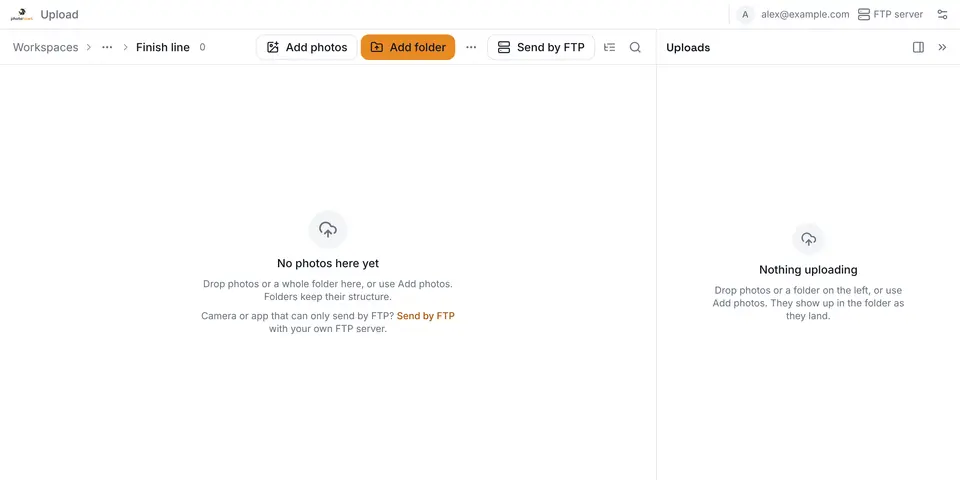
4. Add your photos
- Drag and drop photos or a whole folder onto the uploader.
- Add photos to choose individual files.
- Add folder to choose a folder; its subfolders are kept.
Before anything is sent, a summary shows how many photos are new and how many are already there (they're skipped). Keep the tab open until the upload finishes. If it closes, add the same folder to the same place again and only the missing photos are sent.
Learn moreThe full guide for invited photographersEvery step with screenshots, previews first or originals now, and where to see what you've earned.Was this article helpful?